 Willdou
See it. Find it. Use it.
A clear next step, on every screen.
Actual screenshots from a local documentation workspace. Empty states remain empty; your data and available tools depend on your connections and deployment.
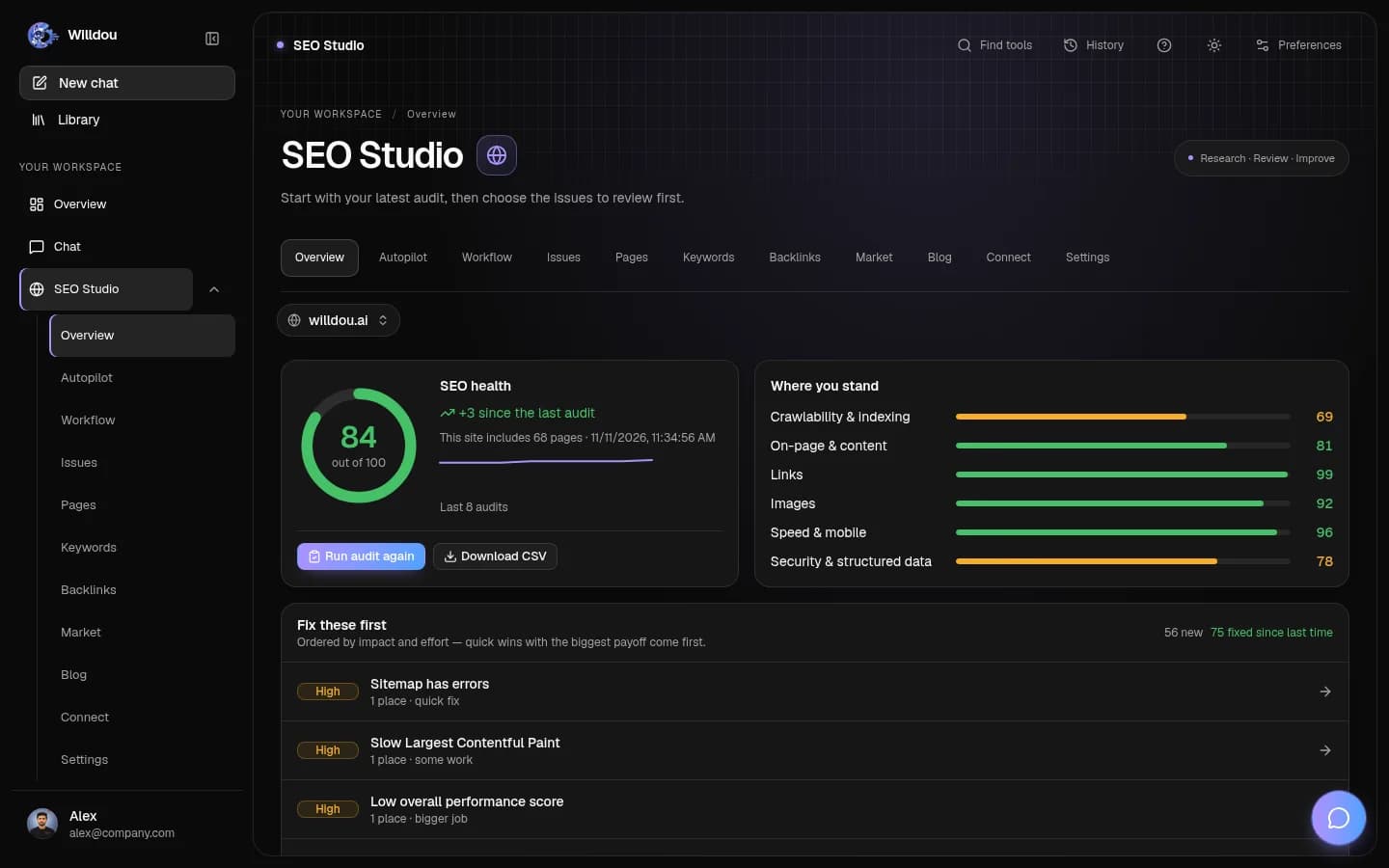
Website overview
Where to click: Choose SEO Studio, select your website, then choose Overview in the studio tabs.
What happens next: Read the latest completed health score, issue groups and audit progress. Start an audit only when you are ready to crawl the site.
Choose your websiteView the actual screen

Website overviewOpen full size Autopilot
Where to click: Choose SEO Studio, select your website, then choose Autopilot in the studio tabs.
What happens next: Inspect the current run and its stages. Starting a run requires your action and configured background services; this page alone does not start one.
Choose your websiteView the actual screen

AutopilotOpen full size Workflow
Where to click: Choose SEO Studio, select your website, then choose Workflow in the studio tabs.
What happens next: Review queued, running, failed and completed work. Open a task to inspect its details before retrying or approving anything.
Choose your websiteView the actual screen

WorkflowOpen full size Issues
Where to click: Choose SEO Studio, select your website, then choose Issues in the studio tabs.
What happens next: Review findings by priority. Read the explanation and proposed fix before applying it. Missing audit data is not a clean bill of health.
Choose your websiteView the actual screen

IssuesOpen full size Pages
Where to click: Choose SEO Studio, select your website, then choose Pages in the studio tabs.
What happens next: Inspect the crawled page list and page-level details. A new site has no pages until a crawl completes.
Choose your websiteView the actual screen

PagesOpen full size Keywords
Where to click: Choose SEO Studio, select your website, then choose Keywords in the studio tabs.
What happens next: Review your keyword research and clusters. Use the available research controls to choose a topic and target market before starting a job.
Choose your websiteView the actual screen

KeywordsOpen full size Backlinks
Where to click: Choose SEO Studio, select your website, then choose Backlinks in the studio tabs.
What happens next: Inspect available link evidence. An empty or unavailable data source does not prove that a website has no backlinks.
Choose your websiteView the actual screen

BacklinksOpen full size Market
Where to click: Choose SEO Studio, select your website, then choose Market in the studio tabs.
What happens next: Review competitor and market research for the selected website. Start analysis deliberately and inspect its sources.
Choose your websiteView the actual screen

MarketOpen full size Connect
Where to click: Choose SEO Studio, select your website, then choose Connect in the studio tabs.
What happens next: Choose the website or Google integration you need. Complete the connection test before allowing writes. Never paste credentials into chat or a public screenshot.
Choose your websiteView the actual screen

ConnectOpen full size Blog
Where to click: Choose SEO Studio, select your website, then choose Blog in the studio tabs.
What happens next: Review blog drafts and their status. Open a draft to inspect it before publishing; available destinations depend on a working connection.
Choose your websiteView the actual screen

BlogOpen full size Website settings
Where to click: Choose SEO Studio, select your website, then choose Settings in the studio tabs.
What happens next: Inspect audit frequency, SEO mode, website limits and automation controls. Saving a schedule changes future behavior, so confirm the destination and frequency first.
Choose your websiteView the actual screen

Website settingsOpen full size
Add a website and audit
Enter a publicly reachable website address. A read-only audit does not require CMS credentials; public URL checks reject private network addresses.
- Open SEO Studio and add the address.
- Run the first audit.
- Wait for crawling and checks to finish.
- Read the health score, categories and prioritized issues.
Understand the results
Checks cover crawlability, on-page content, links, images, speed and structured data. Issue counts are not ranking predictions, and a health score is not a ranking guarantee. Speed measurements depend on the Lighthouse service.
Inspect Pages, Issues and the CSV export. Multiple runs let you compare changes. Manually marking an issue fixed is separate from applying a live change.
Keywords and backlinks
Research uses live autocomplete, search results and trend signals. Difficulty is the product’s analysis, not a proprietary index. Exact search volume and CPC require data sources that are not supplied by default.
Backlinks are confirmed by finding the actual link on the referring page. Common Crawl processing can be a long-running job.
Connect and apply changes
Supported drivers include WordPress, Shopify, SFTP and FTP. Connect only websites you are authorized to manage, using narrowly scoped credentials.
- Choose a connection type in Connect and test it.
- Review the previous and proposed value.
- Apply only after explicit approval.
- Use change history to revert supported changes.
Troubleshooting
For crawl failures, check public access, robots rules and server responses. For missing search data, check Google authorization. Some theme or page-builder content cannot be changed through normal body fields; those limitations should be reported rather than treated as fixes.