 Willdou
See it. Find it. Use it.
A clear next step, on every screen.
Actual screenshots from a local documentation workspace. Empty states remain empty; your data and available tools depend on your connections and deployment.
Inspect schedules
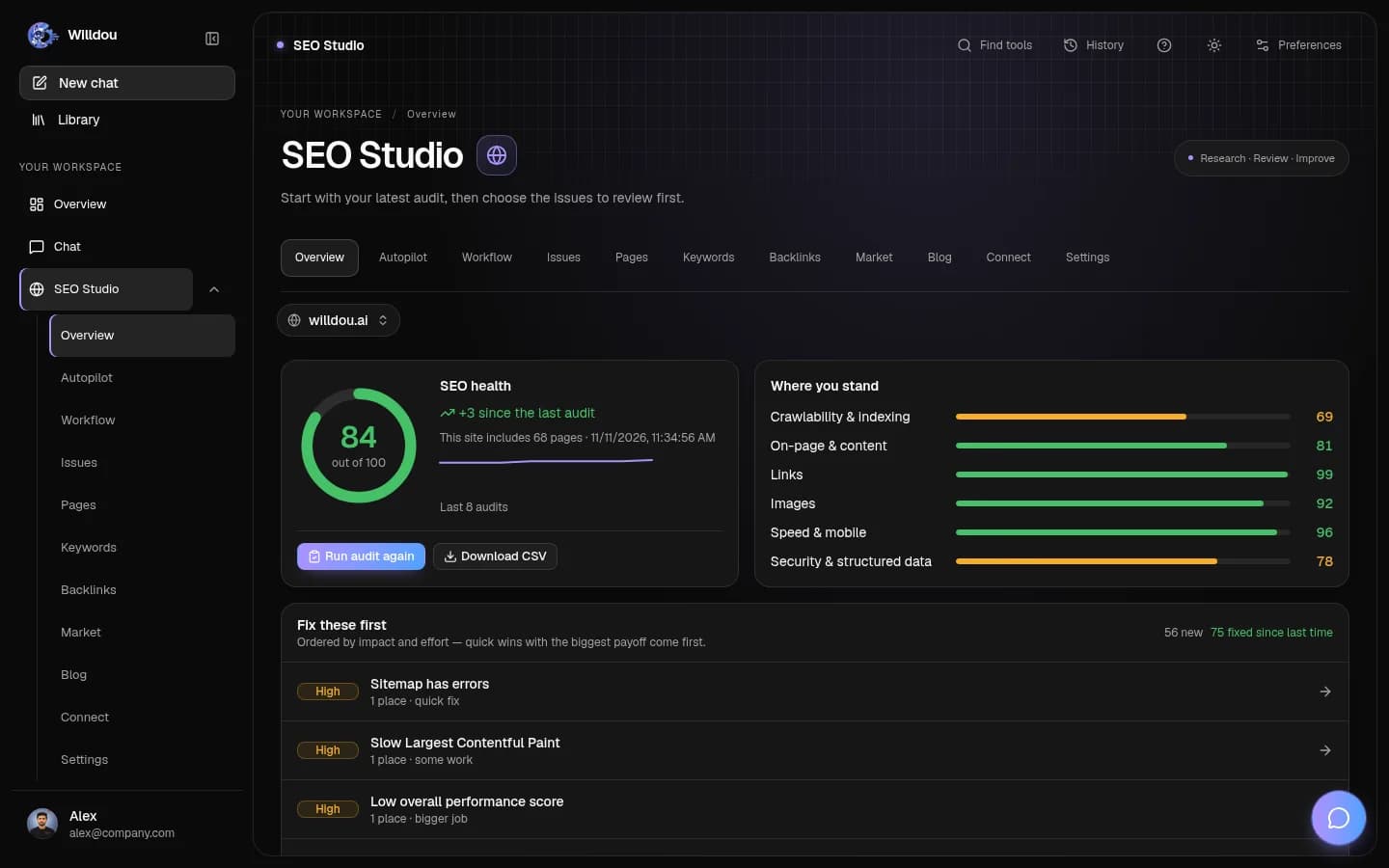
Where to click: Choose SEO Studio, select a website, then open Settings.
What happens next: Review the current audit schedule and automation settings. A saved setting is not proof that a worker completed a run.
Choose your websiteView the actual screen

Inspect schedulesOpen full size Monitor work
Where to click: Open Workflow for the selected website.
What happens next: Inspect run states and errors. Confirm the connection and provider before retrying; do not repeatedly resubmit the same job.
Choose your websiteView the actual screen

Monitor workOpen full size Review scheduled social content
Where to click: Choose Social Studio, then Calendar.
What happens next: Confirm the intended date, destination and content. Scheduled posts are separate from published posts.
Open this toolView the actual screen

Review scheduled social contentOpen full size
Know the scope
Existing automation includes audit schedules, SEO Auto mode, connection-level auto-apply, auto-blog and scheduled social publishing. These are not a general-purpose drag-and-drop workflow editor.
Verify manually first
Automation needs working connections, correct permissions and an active worker. Database or production environment changes belong with an administrator.
- Connect and test the target site or account.
- Run the task manually and inspect its result.
- Enable automation only for the task types you need.
- Confirm the frequency, destination and permitted changes.
Monitor and stop
Inspect audits, workflow tasks, change history and content status. Auto mode and auto-apply are distinct settings: disabling one does not imply that already-applied changes have been reverted.
Disable the relevant automation before investigating unexpected behavior. For applied website changes, use supported revert actions and inspect the actual page.
When scheduled work does not run
Check connection state, token expiry, the worker, queues and schedule settings. Social schedules are swept periodically, not guaranteed to the second. Google and platform analytics can become available after the event itself.