 Willdou
See it. Find it. Use it.
A clear next step, on every screen.
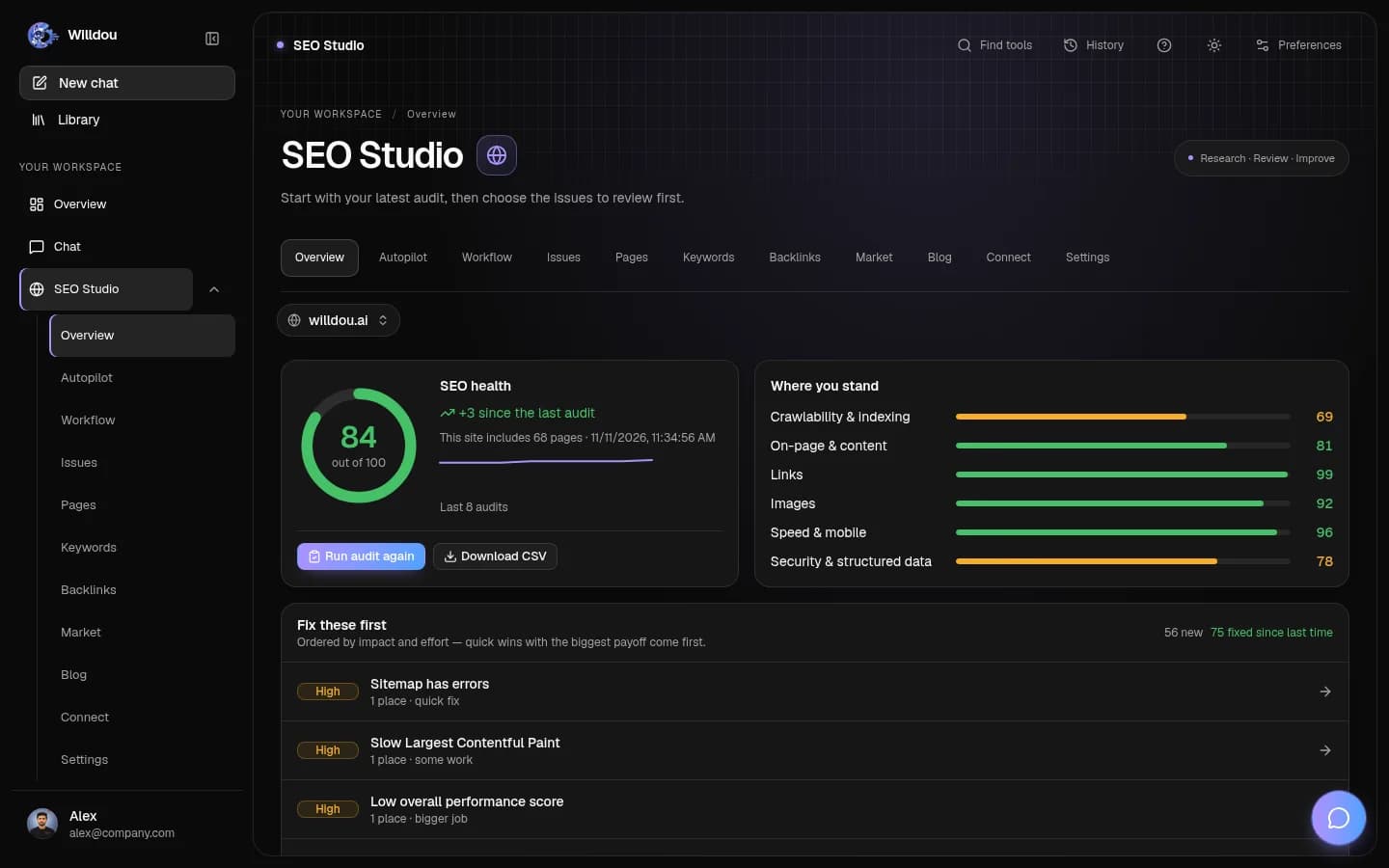
Actual screenshots from a local documentation workspace. Empty states remain empty; your data and available tools depend on your connections and deployment.
Your workspace
Where to click: Choose Overview in the left navigation.
What happens next: Use the composer to start a conversation, or choose a studio card. Website and social summaries appear below the tools.
Open this toolView the actual screen

Your workspaceOpen full size Website trends and content distribution
Where to click: Choose a website in Website for insights. Scroll below the compact Chat composer.
What happens next: Read the latest completed health score, saved audit trend and category scores. The content bars show actual saved Social Studio stages. Missing data stays unavailable; one audit does not create a trend.
Open this toolView the actual screen

Website trends and content distributionOpen full size Website scores and work status
Where to click: Choose Expand details in Website & social activity below the dashboard charts.
What happens next: Each website shows its current audit or planning status, its latest completed score and any reported score change. Missing scores stay unavailable. Social counts distinguish drafts, review, scheduled, published and failed items.
Open this toolView the actual screen

Website scores and work statusOpen full size Find a tool
Where to click: Click Find tools in the top toolbar. Type a task or studio name.
What happens next: Choose a result to open the corresponding tool. Close the finder with Escape to return to your draft.
Open this toolView the actual screen

Find a toolOpen full size
Understand scores and status
The latest completed audit score and the current job status are separate. An earlier score can remain visible while a new audit runs. A website without a completed audit has no score; it is not scored zero.
Read the content pipeline
Draft, awaiting review, approved, scheduled, published and failed content are shown separately. Scheduled does not mean published. Refresh reads saved status without starting a new job.
Open the relevant studio
Open the relevant website or workflow to inspect findings, or use Social Studio to review content. For failed or unavailable states, check connections and service readiness before retrying.