 Willdou
一步一步,清楚了解
跟着界面,找到下一步。
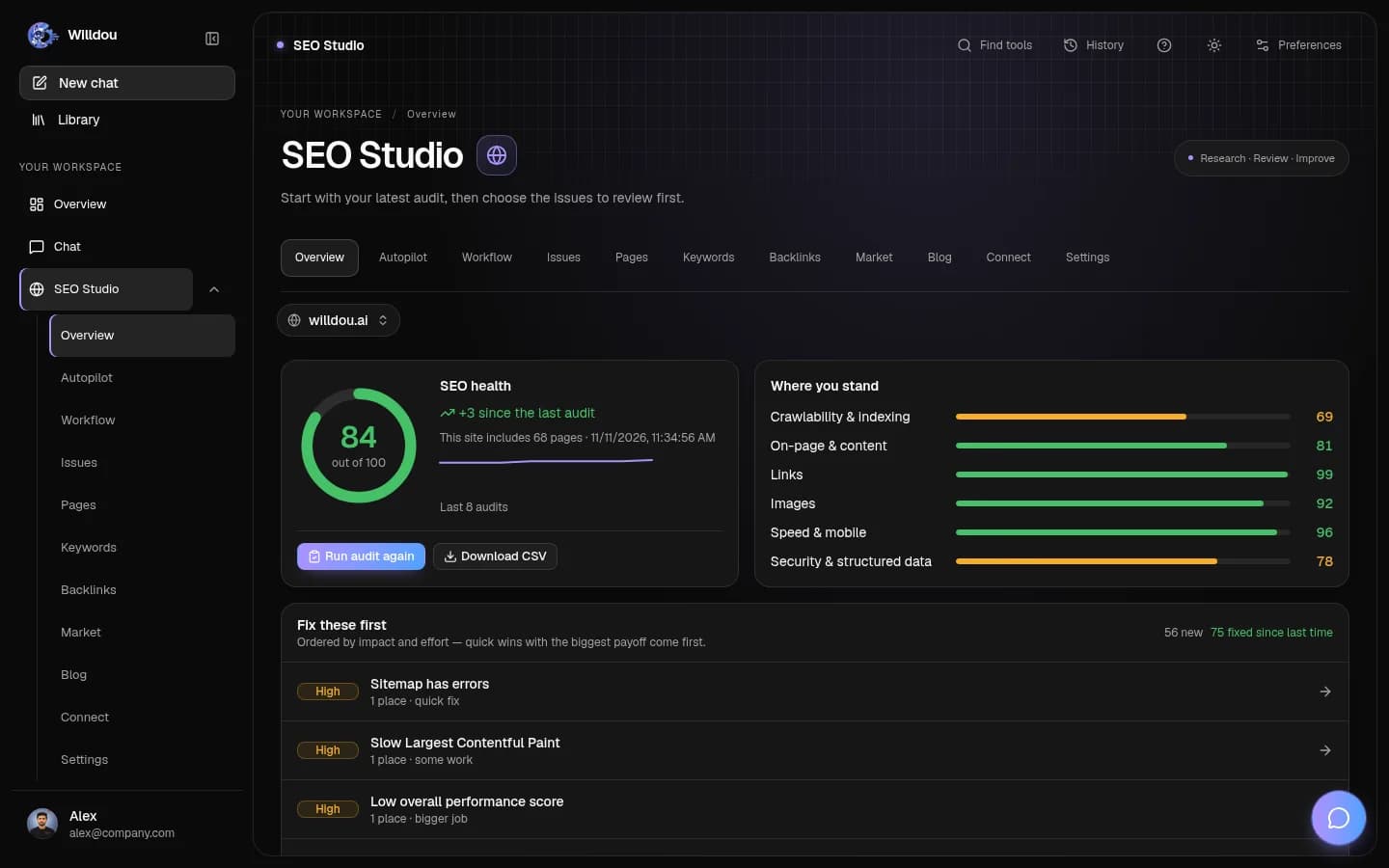
以下为本地文档工作空间的真实界面截图,显示英文按钮名称。空状态不会伪装成已完成任务;你的实际数据和可用功能取决于连接与部署配置。
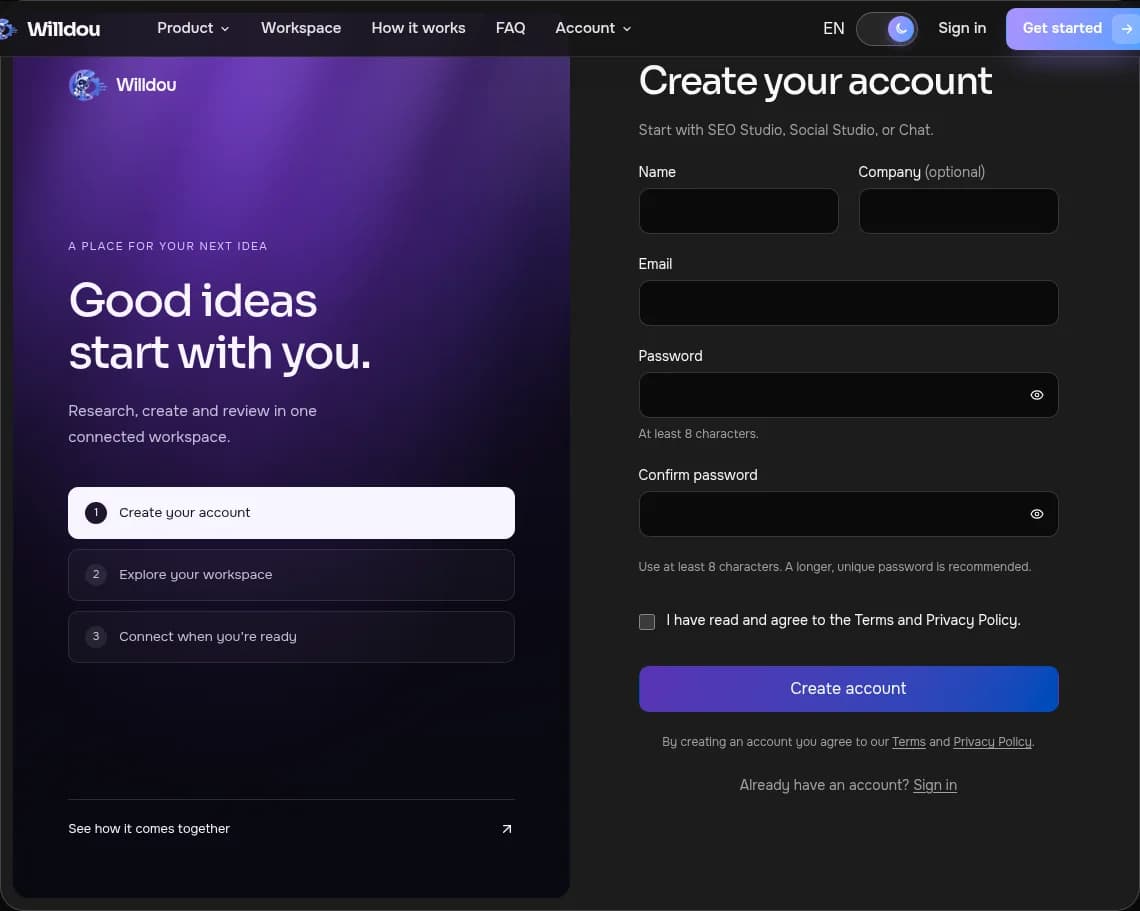
Create your workspace
点击位置:Choose Get started in the public header.
接下来会看到:Enter your details, read the terms and submit the form. If your email already exists, choose Sign in. Verification and social sign-in depend on the deployment.
打开此工具查看实际界面截图
Create your workspace打开原图 Move between studios
点击位置:After signing in, use Overview, Chat, SEO Studio or Social Studio in the left navigation.
接下来会看到:The same workspace navigation remains available across studios. On mobile, use the menu button or bottom navigation.
打开此工具查看实际界面截图

Move between studios打开原图 Mobile navigation
点击位置:On a phone, use the bottom bar to choose Overview, Chat, SEO or Social. Open the menu for additional options.
接下来会看到:The workspace adapts to the small screen. History opens only when you tap its toolbar button.
打开此工具查看实际界面截图

Mobile navigation打开原图
创建账户
打开注册页面,输入姓名、邮箱和至少八位密码。Google 登录仅在服务器配置后可用。
- 阅读条款与隐私政策。
- 创建账户后进入概览。
- 已注册邮箱请直接登录。
选择任务
Chat 可直接回答问题。SEO Studio 接受公开网址。Social Studio 可在没有社交账户的情况下生成草稿。
- 先完成一项小任务。
- 等待任务完成并检查结果。
- 需要发布或修改网站时,再建立相应连接。
权限与限制
资源数量受当前套餐限制,定价仍可能调整。付费升级只有在账单服务配置后可用。不要将演示数据与真实测量混淆。
fetch('/api/websites', { credentials: 'same-origin' })无法继续时
检查邮箱格式和密码长度。会话过期时重新登录。生成任务需要后台服务;长时间停留在处理中时,请提供任务所在页面联系支持。