 Willdou
一步一步,清楚了解
跟着界面,找到下一步。
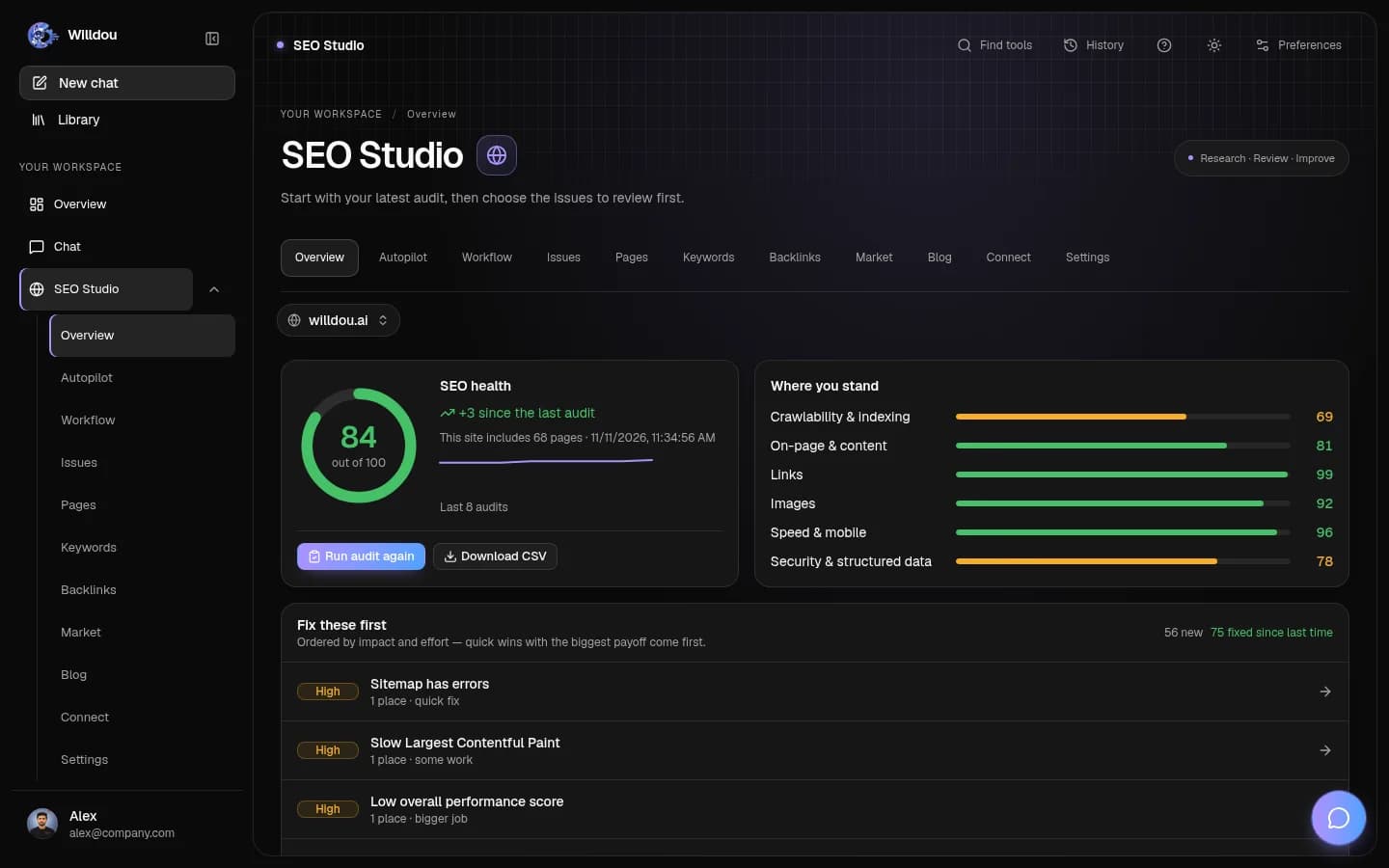
以下为本地文档工作空间的真实界面截图,显示英文按钮名称。空状态不会伪装成已完成任务;你的实际数据和可用功能取决于连接与部署配置。
Start a conversation
点击位置:Choose Chat, then click the message box. Type your request and choose Send.
接下来会看到:Replies appear in the conversation. During generation, Stop cancels the reply; it does not delete the conversation. Sending requires an available model provider.
打开此工具查看实际界面截图

Start a conversation打开原图 Files and extra tools
点击位置:Click the plus button beside the composer.
接下来会看到:The menu contains file upload, image creation, SEO expert mode, web search and deep research. Choose an option before sending.
打开此工具查看实际界面截图

Files and extra tools打开原图 Response speed
点击位置:Click Balanced (or the current response-speed label) beside the plus button.
接下来会看到:Choose a response mode. This changes how the next request is handled; model availability still depends on the deployment.
打开此工具查看实际界面截图

Response speed打开原图 Image creation
点击位置:Click Create an image above the composer, or choose it from the plus menu.
接下来会看到:The composer switches to an image description. Describe the scene, then send when your image provider is available.
打开此工具查看实际界面截图

Image creation打开原图 Research a topic
点击位置:Click Research a topic above the composer.
接下来会看到:The search option becomes active. Enter a question and inspect the sources in the completed answer. Research requires configured services.
打开此工具查看实际界面截图

Research a topic打开原图 Chats, Files and Activity
点击位置:Click History in the toolbar. Choose Chats, Files or Activity.
接下来会看到:Search saved conversations, reopen a chat or inspect saved files and recent work. History starts closed on mobile; opening it does not discard your draft.
打开此工具查看实际界面截图

Chats, Files and Activity打开原图 Files in History
点击位置:Open History, then choose Files.
接下来会看到:Browse saved images and documents. Search here to narrow the library; a new workspace can have no files yet.
打开此工具查看实际界面截图

Files in History打开原图 Activity in History
点击位置:Open History, then choose Activity.
接下来会看到:Review the real conversations and content jobs recorded in your workspace. An empty account has no activity to display.
打开此工具查看实际界面截图

Activity in History打开原图 Dictation and voice conversations
点击位置:Use the microphone for Dictate, or the voice-wave button for Start voice conversation.
接下来会看到:Only start recording when you are ready and have granted microphone access. Dictation fills the message box; voice conversations use connected speech and model services. The screenshot shows the controls before recording starts.
打开此工具查看实际界面截图

Dictation and voice conversations打开原图 Your library
点击位置:Choose Library from the left navigation.
接下来会看到:Saved documents and generated media appear here. A new account shows an empty library until files or media exist.
打开此工具查看实际界面截图

Your library打开原图 Personalization and memory
点击位置:Click Preferences in the toolbar.
接下来会看到:Review custom instructions and saved memories. Save only the changes you intend; deleting a memory is a separate action.
打开此工具查看实际界面截图

Personalization and memory打开原图
发送第一条消息
输入目标、相关背景和期望的输出格式。回答会逐步显示。语音、图像和网络研究依赖对应服务。
- 打开 Chat 并输入问题。
- 需要时添加支持的文件。
- 检查回答及引用来源。
- 通过 Recents 返回对话。
文件与记忆
可上传支持的图片、PDF、Word 和文本文件作为上下文。请检查上传结果。记忆功能可保留偏好;在设置中查看和删除不需要的信息。
账户与访问
访客可以直接试用 Chat,消息额度有限;登录后可解锁完整的聊天历史、记忆和个性化设置。
连接或回答中断
检查网络和会话。语音需浏览器麦克风权限。模型或图像服务繁忙时可能排队。AI 回答可能错误,请核实重要内容;发送前不要包含不必要的机密。